Thursday, March 12, 2015
Help users find your app with MIME type based Chrome Web Store marketing
Note from editor: The syntax for this feature has changed since this was first posted. The posted has been edited to reflect the change.
Try to think back to when the word “viral” had only negative connotations . . . if you are a web developer trying to market your app on a minimal budget, you may not remember those dark days at all! Viral marketing is currently not just the cheapest but arguably the most effective way to spread the word about your app and to drive user adoption. Through file sharing and MIME type-filtered upsells, Google Drive integration gives apps some powerful “viral” marketing capabilities.
Users love to share files. Google Drive makes this easy for them to do, and we know from experience that they do it often. When users share or sync files that they can’t open using an installed viewer, Drive displays a link to a Chrome Web Store list of apps that can open that file type -- potentially, your app. This can be a powerful mechanism for distributing your app to the users that actually need it.
For example, let’s say someone asks me to review a project plan saved in an .mpp file. I currently don’t have a viewer to open such a file. Am I out of luck? No — help is right there for me at the bottom left of the screen:

If I click on this link, I’m redirected to a Chrome Web Store list of installable apps that have registered themselves to open .mpp files. Currently, this includes some excellent options for Drive-integrated project management web apps:

Interested in getting your app in a list like this? It’s not difficult. First, add a special web intent to your Chrome Web Store manifest. This intent should include the MIME types and extensions youd like your app to be searchable by. Though the type field accepts only MIME types, it allows you to model file extensions as the special type application/vnd.google.drive.ext-type.<EXTENSION>.
{
  "name" : "ProjectManagmentApp",
  "version" : "1",
  "description" : "A web app to manage projects",
  "container" : "GOOGLE_DRIVE",
  "api_console_project_id" : "1234567891011",
  "gdrive_mime_types": {
    "http://drive.google.com/intents/opendrivedoc": [
      {
        "type": ["application/vnd.ms-project",
                 "application/vnd.google.drive.ext-type.mpp"],
        "href": "http://projectapp_web_url/",
        "title" : "Open",
        "disposition" : "window"
      }
    ]
  },
  ...
Once an intent like this is published in your app listing, you’ll be featured in Chrome Web Store “upsell” lists like the one depicted above, and users viewing the list will be a click away from installing your app. For full detail on adding this web intent to your manifest and testing it for your Chrome Web Store listing, see Help Users Find your App in the Drive SDK documentation.
We recommend that any and all listed apps should list their MIME types for filtering in this way. However, doing so is especially beneficial for apps that can open any of these following types, for which there is currently no registered viewer at all:
message/rfc822-- Emailtext/x-vcard-- Electronic business cardsapplication/x-font-ttf-- Fontsimage/gif-- Animated GIFs
Inevitably, users who lack valid viewers will end up with shared files of these MIME types. And just when they are about to throw up their hands, they’ll find your app at the top of the list of apps that can help them open the file. This creates the conditions for a very positive first user experience for your app.
If you have questions or comments about how to add this feature to your app, don’t hesitate to let us know on our Stack Overflow tag, google-drive-sdk.
 | Eric Gilmore Eric is a technical writer working with the Developer Relations group. Previously dedicated to Google Apps APIs, he is now busy writing about all aspects of the Google Drive SDK. |

Tuesday, March 10, 2015
Integrating your Rails application with Google Apps and the Apps Marketplace
In this article you will find a step-by-step guide to integrating your Ruby on Rails application with Google Apps and launching it on the Google Apps Marketplace. The Google Apps Marketplace is a great platform to get new clients, show off our product and integrate Floorplanner with the services Google provides. At the beginning of the summer we tried to launch our application on the Marketplace. We found out that a lot of people were struggling with the existing Rails libraries and the OAuth authorization method, therefore we would like to provide this tutorial to help other developers. I would like to thank Dušan Maliarik for building this implementation with me and finding the solution for using the two-legged OAuth authorization.
1. The initial setup
Before you start programming there is some required setup. You first have to add a new application on the Google Apps Marketplace. You will need a Vendor Profile for this and a Google account. Sign In to the Marketplace with your Google account and go to your Vendor Profile using the link at the top-right of the Marketplace homepage.After you enter some information about your company, there will be a list of your applications called “Listings.” You need to create a new listing to develop and test your application. When you create a new listing, check the box which says “My product may be directly installed into Google Apps domains.” This is necessary if you want the application to have an “Add it Now” button on the listing page, and allows you to add a Manifest to describe the application.
A Manifest describes all the settings of your application, like the name, URL’s and required permissions. Below you can find an example manifest. You will need to change all fields surrounded by brackets [ ].
<?xml version="1.0" encoding="UTF-8" ?>
<ApplicationManifest xmlns="http://schemas.google.com/ApplicationManifest/2009">

<Name>[ApplicationName]</Name>
<Description>[Description]</Description>

<!-- Administrators and users will be sent to this URL for application support -->
<Support>
<!-- URL for application setup as an optional redirect during the install -->
<Link rel="setup" href="[ApplicationSetupUrl]?domain=${DOMAIN_NAME}" />

<!-- URL for application configuration, accessed from the app settings page in the control panel -->
<Link rel="manage" href="[ApplicationAdminUrl]?domain=${DOMAIN_NAME}" />

<!-- URL explaining how customers get support. -->
<Link rel="support" href="[ApplicationHelpUrl]" />

<!-- URL that is displayed to admins during the deletion process, to specify policies such as data retention, how to claim accounts, etc. -->
<Link rel="deletion-policy" href="[ApplicationPolicyUrl]" />
</Support>

<!-- Show this link in Googles universal navigation for all users -->
<Extension id="navLink" type="link">
  <Name>[ApplicationName]</Name>
  <Url>[ApplicationLoginUrl]?domain=${DOMAIN_NAME}</Url>
  <!-- Used APIs -->
  <Scope ref="contactFeed"/>
  <Scope ref="spreadsheetFeed"/>
  <Scope ref="doclistFeed"/>
</Extension>

<!-- Declare our OpenID realm so our app is white listed -->
<Extension id="realm" type="openIdRealm">
  <Url>[ApplicationRealm]</Url>
</Extension>

<Scope id="doclistFeed">
  <Url>https://docs.google.com/feeds/</Url>
  <Reason>[Reason]</Reason>
</Scope>

<Scope id="contactFeed">
  <Url>https://www.google.com/m8/feeds/</Url>
  <Reason>[Reason]</Reason>
</Scope>

</ApplicationManifest>
You should decide whether you want to create a setup page. During the installation process of the application you will be redirected to the URL you specified in the manifest under “setup”. This is useful for collecting additional information necessary for configuring the app, or setting up a new umbrella account for the company. The umbrella account allows you to use other users of the domain as sub-users. You can also retrieve other information, like the administrators of the domain, the logo of the Google Apps account, or the domain name of the Google Apps account. If you don’t want to redirect customers to your site during the installation process, then just remove the line from your manifest.
2. Rails libraries and OpenID
The code you’re going to use relies on several Rails plugins and gems. The plugins/gems needed for this tutorial are listed below.- OAuth Gem
- Ruby-openid
- Rack-openid
- Ruby-openid-apps-discovery
def login

# The domain needs to be set. For example with params[:domain]
authenticate_with_open_id(params[:domain]),
   { :required   => ["http://axschema.org/contact/email"], :return_to  => /login}) do |result, identity_url, registration|

     if result.successful?
       # Succesfully logged in, retrieve email address
       email = get_email(registration)
     else
        # Failed to login
     end
end

end

def get_email(registration)

       ax_response = OpenID::AX::FetchResponse.from_success_response(
       request.env[Rack::OpenID::RESPONSE])
       ax_response.data["http://axschema.org/contact/email"].first

end
After reviewing this code sample you can alter it for using it with the setup page. Authenticate with OpenID when a user goes into the setup procedure and redirect them to the actual setup page after they are authenticated.
After your setup page is complete you can add your Google Apps Marketplace listing to your Google Apps account. Note that administrator privileges are necessary to add the application to your Google Apps account. You can add the application from the Vendor Profile when you click on your newly created application. A big blue button will appear on the right side of the listing’s information page. More information on this process can be found on the Creating a Listing page in the Marketplace developer documentation.
3. Using the Google Data APIs
When using the Google Data APIs outside of the Apps Marketplace you have to get access to a user’s data using three-legged OAuth, AuthSub or ClientLogin. These authorization methods require your application to redirect the user to Google’s site to request authorization. Because you’ve already authenticated the user by using OpenID and an administrator has granted authorization to the user’s data when they added your application to their Google Apps domain, you don’t want to use these methods.For the Google Apps Marketplace there is another option-- two-legged OAuth. Two-legged OAuth allows your application to use a single consumer key and secret (available from the Vendor Profile) to access the data for all your customers who have installed the Marketplace app and granted the appropriate permissions. Because the administrators have granted permission on behalf of their users, each user does not need to be prompted individually.
The first thing you should try is to retrieve a contact list of a user. You could use it for auto completion on forms, or you can let users quickly add friends to your application.
CONSUMER_KEY = "Your-consumer-key"
CONSUMER_SECRET = "Your-consumer-secret"

def get_contacts

   # Retrieve contacts
   email = "user@email.com"
   url = "https://www.google.com/m8/feeds/contacts/default/full?xoauth_requestor_id=#{email}"
   contacts = gdata_request(url, :get)

end

def gdata_request(url, method, headers = {}, data = "")

    uri = URI.parse(url)

   # Setting up two-legged-oauth
   consumer = OAuth::Consumer.new(CONSUMER_KEY, CONSUMER_SECRET)
   oauth_params = {:consumer => consumer, :method => method, :request_uri => uri.to_s}

   # Set Net:HTTP connection
   http = Net::HTTP.new(uri.host, uri.port)
   http.use_ssl = (uri.port == 443)

   if method == :post
 req = Net::HTTP::Post.new(uri.request_uri)
 req.body = data
   else
 req = Net::HTTP::Get.new(uri.request_uri)
   end

   # Set authorization header
   oauth_helper = OAuth::Client::Helper.new(req, oauth_params)
   req.initialize_http_header(headers.merge({Authorization => oauth_helper.header}))

   # Execute request
   response = http.request(req)
   response.body

end
The feature we struggled with the most during the integration of Floorplanner was the two-legged OAuth authorization. There was no documentation available for the gems and it took some attempts to get it right. We turned to the OAuth Playground to find out the differences between our own request and the working request. After numerous tries we found out that we need to specify the HTTP method in order to get it working. It was important to use the Net::HTTP::Post request when sending information and Net::HTTP::Get request when retrieving information. This sounds logical, but it also needed to be done when retrieving the authorization header in the OAuth Client Helper, as well as in the Net HTTP request. Now we have this code, we can generate a request for almost every call in the Google Data API’s.
In the next example, you will use the Google Docs API to send a CSV file to a user’s Google Docs account. You need to do a POST request to the Google Docs feed. The request is almost the same as in the previous example, only you need to add two more headers. One is the Content-Type where you specify the MIME type you want to send. In this case, you’re uploading a CSV file so “text/csv” will do. Another header you need to send is the Slug. This value specifies the name you want for the document in Google Docs. Another way of doing this is adding meta-data to the body of the request. More information on this method can be found in the the Google Docs documentation.
def submit_csv_to_gdocs

  email = user@email.com
  url = https://docs.google.com/feeds/default/private/full?xoauth_requestor_id=#{email}

  # Create new CSV
  csv = StringIO.new

  CSV::Writer.generate(csv, ,) do |line|
  line << ["Example 1", "Example 2"]
  end

  csv.rewind

  # Send request
   gdata_request(url, :post,
      { Content-Type => text/csv,
         Slug => test.csv,
         GData-Version => 3.0 },
      csv.read)

end
Now, this is all you need to get started with the Google Data API’s. Be sure to check out the Google Apps Marketplace Developer overview for more information and to see which API’s you could use and how to use these. I would advise to check out the OAuth Playground if you have any problems with authorization. Using the playground with two-legged OAuth is very easy. Just follow these steps:
- Set the signature method to HMAC-SHA1
- Type in your consumer key and consumer secret (these can be found in your Vendor Profile)
- Set your Feed URL (step 6)
- Set GData-version to 3.0 unless the API only supports 2.0
- Click execute
Thank you for reading this tutorial. I know this isn’t the best approach on using two-legged OAuth but it will give you some insight. The best way would be to build in two-legged OAuth support in the Google Data APIs Ruby Utility Library. I haven’t done that yet but am planning to look into that soon. If you have any questions or comments, I would love to hear from you. You can email me at vincent@floorplanner.com.
One last note: These code snippets are just examples of how to use the Google Apps Marketplace with Rails. I would advise you not to use these examples in a production environment.
Want to weigh in on this topic? Discuss on Buzz
Wednesday, March 4, 2015
Do You Want Cheap Books For Your Classroom
Take a look at how full my bookshelf is in my classroom!
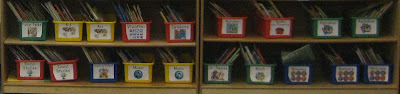
And thats not even all: I have 11 totes full of books in my basement! They are 64 qt. totes and hold 100-200 books!

Obviously, the cost of books can add up quick, especially when we have so many different topics that there are great read alouds for. But, there is a way to get books for your classroom for dirt cheap... library books sales!!! These are probably the best way to build a classroom library!
The best way Ive found library books sales is through this website:

Note: Im not getting paid to promote the website, Im posting it because it honestly is the best!!
Browse through the site to find sales near you. Usually the ones that state "Big Sale!" are pretty good, but only trial and error will really work. You can sign up for a weekly email alerts so youre always aware of the sales in your area (without having to remember to check the website!)
Now, any given day at a library sale is a steal for books... but do you want books for your classroom that are basically free? Of course you do!!!! So you need to go to the book sales on the best day... bag day! Most large library sales have this the last day of their sale. Fill up a whole bag full of books for $5! A lot of places let you even bring your own bag... I get a kick out of people with giant beach bags full of books (ok, so Im usually one of those people but it is funny to watch)!
Not only do I use bag day to stock up on new books for the classroom, but I also use it to fill my treasure chest! The kids just look to bring home books as a prize for their good behavior! I started off this year with two totes full of books for the treasure chest (easily 300 books that I paid a total of $10 for) and all of these books were gone by December! They were the most popular prize as well as the least expensive!
Saturday, February 28, 2015
How to Organize Your Classroom Library Complete Library Organization Kit!

The labels for the books are easy to print... they line up perfectly on Avery 5160 labels, so all you have to do is peel and stick! I put the labels on the back cover of my books for two reasons:
1. Its not covering any of the front cover!
2. Its the perfect way to introduce the vocabulary "back of the book," which is on many Kindergarten reading assessments!
I am selling this complete library organization system for your classroom for only $8. And I havent even told you the best part! If you want me to add any labels, Ill make them asap and revise the file on TPT. This is all youll ever need to organize your books forever!
At the moment, the labels that are included are:
Authors and Series:
- Amelia Bedelia
- Arthur
- Berenstain Bears
- Cam Jansen
- Clifford
- Dr. Seuss
- Eric Carle
- Ezra Jack Keats
- I Spy
- Junie B. Jones
- Little Critters
- Lois Ehlert
- Magic School Bus
- Richard Scarry
- Wheres Waldo
- Winnie the Pooh
ELA Topics:
- Alphabet
- Fairy Tales
- Nursery Rhymes
- Poetry
General Topics:
- Art
- Language Arts
- Music
- Social Studies
Holidays and Celebrations:
- 100th Day
- Birthday
- Christmas
- Easter
- Fathers Day
- Graduation
- Halloween
- Hanukkah
- Kwanza
- Martin Luther King Jr.
- Mothers Day
- New Years Day
- Passover
- St. Patricks Day
- Thanksgiving
- Valentines Day
Math:
- Addition and Subtraction
- Counting Backwards
- Counting
- Graphs
- Math
- Measurement
- Money
- Multiplication and Division
- Patterns
- Shapes
- Sorting
- Time
Science:
- Animals (Fiction)
- Animals (Non-Fiction)
- Animals in Winder
- Apples and Pumpkins
- Dinosaurs
- Environment
- Five Senses
- Human Body
- Insects
- Keeping Healthy
- Magnets
- Ocean
- Outer Space
- Plants
- Season - Autumn
- Season - Spring
- Season - Summer
- Season - Winter
- Seasons
- Weather
Social Studies:
- Community Helpers
- Family
- Friends
- I Am Special
- Manners
- Neighborhood
Misc.
- Favorite Stories (For those classic stories like The Velveteen Rabbit or Corduroy!)
- Our Books (For student authors!)
- Starting School
- Transportation
That means you get labels for 82 different categories... for only $8! And again, the best part is that if you want me to add any additional labels, all you have to do is ask! Ill make them asap and revise the file on TPT. This means that $8 is all youll ever need to spend to organize your books forever!
Click any of the pictures below to head on over to TPT to download the free preview and check it out for yourself. (Note: The free preview is a PDF, but the actual download is a ZIP with DOC and PDF files.)


Monday, February 2, 2015
Remove password pattern lock gmail account in your Samsung Galaxy Core i8260 i8262

Hard resetting / factory resetting your phone will solve the following issues:
1. If you forgot your pattern lock
2. If you forgot your gmail account
3. If you forgot your password
4. Apps that automatically force closing
5. Stuck in Samsung Logo (sometimes does not work if the firmware is totally damage)
NOTE: Performing hard reset will erase your data.
To hard reset:
1. Turn off your phone
2. Press and Hold Volume UP + Home Button + Power Button simultaneously
3. Release the buttons when you see the Samsung Galaxy Logo Core logo
4. Android System Recovery should appear
5. Select wipe / factory reset, to navigate press the Volume Rocker, to select press the HOME Button
6. Reboot your phone.
Note: If performing hard reset did not succeed, you need to wipe the cache first in the android system recovery before performing wipe / factory reset.
I hope this tutorial helps you.
Sunday, February 1, 2015
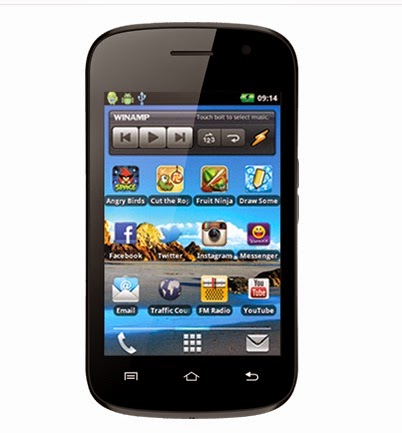
Cloudfone Ice 350e Stock ROM to unbrick your phone
TOOLS
ResearchDownload --> DOWNLOAD HERE
Firmware v.06 --> Download HERE
Firmware v.07 --> Download Here
Driver -- > DOWNLOAD HERE
or this Driver -- > Download Here
DOWNLOAD THE FILES, AND EXTRACT. INSTALL DRIVER.
There are two ways you can use this firmware.
1. To fully flash your phone
2. To remove password, pattern lock, and gmail account.
TO remove password, pattern lock and gmail account.
1. Open Researchdownload
2. Load packet and look for file(first button)
3. Check only the following
✓FDL1✓FDL2✓UserData
4. Click in BACKUP page, and UNCHECK ALL and press OK
5. And lastly press the Play button to continue flashing.
TO fully flash your phone.
1. Open Researchdownload
2. Load packet and look for file(first button)
3. Remove check in the following selection
✓EraseRuntimeNV
✓PHASE_CHECK
✓EraseCache
✓EraseData
✓EraseMisc
4. Click in BACKUP page, and UNCHECK ALL and press OK
5. And lastly press the Play button to continue flashing.
I hope this tutorial help you recover your phone :)
Friday, January 30, 2015
Check Installation Date of Your Windows

How to Check Installation Date of Your Windows??
- Click on Start . Type cmd in Windows search and press enter to bring up Command Prompt.
- Now type systeminfo and press enter.


