Showing posts with label 43. Show all posts
Showing posts with label 43. Show all posts
Wednesday, February 4, 2015
Android beginner tutorial Part 43 AlertDialog custom layout
In this tutorial we will learn how to create a custom layout for an AlertDialog.
Firstly, create the layout xml. I called mine custom_alert_layout.xml. It is a simple LinearLayout container with 2 EditTexts in it - with ids username and password. They are also stylized to look and behave like username and password fields in a log in window.
Now go to MainActivity.java class. First we declare a View:
Then in onCreate() function we can use a LayoutInflater to get a View out of the xml layout. Apply this View value to alertView:
You can apply this view to the AlertDialog using the builders setView() method:
You can still use AlertDialogs elements made with the builder though! Ill add a title, an icon and a button to this layout using the builder.
In the onClick() event handler function of the button, I extract the text values of the two EditText objects and display them in a Toast:
Full code:
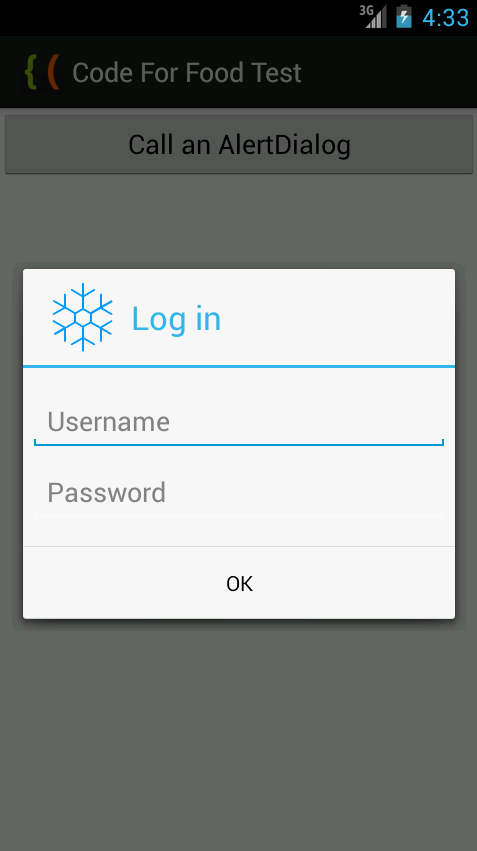
The resulting application looks something like this:
Thanks for reading!
Read more »
Firstly, create the layout xml. I called mine custom_alert_layout.xml. It is a simple LinearLayout container with 2 EditTexts in it - with ids username and password. They are also stylized to look and behave like username and password fields in a log in window.
<?xml version="1.0" encoding="utf-8"?>
<LinearLayout xmlns:android="http://schemas.android.com/apk/res/android"
    android:orientation="vertical"
    android:layout_width="wrap_content"
    android:layout_height="wrap_content">
    <EditText
        android:id="@+id/username"
        android:inputType="textEmailAddress"
        android:layout_width="match_parent"
        android:layout_height="wrap_content"
        android:layout_marginTop="16dp"
        android:layout_marginLeft="4dp"
        android:layout_marginRight="4dp"
        android:layout_marginBottom="4dp"
        android:hint="Username" />
    <EditText
        android:id="@+id/password"
        android:inputType="textPassword"
        android:layout_width="match_parent"
        android:layout_height="wrap_content"
        android:layout_marginTop="4dp"
        android:layout_marginLeft="4dp"
        android:layout_marginRight="4dp"
        android:layout_marginBottom="16dp"
        android:fontFamily="sans-serif"
        android:hint="Password"/>
</LinearLayout>
Now go to MainActivity.java class. First we declare a View:
private View alertView;
Then in onCreate() function we can use a LayoutInflater to get a View out of the xml layout. Apply this View value to alertView:
LayoutInflater inflater = LayoutInflater.from(getApplicationContext());
alertView = inflater.inflate(R.layout.custom_alert_layout, null);
You can apply this view to the AlertDialog using the builders setView() method:
builder.setView(alertView);
You can still use AlertDialogs elements made with the builder though! Ill add a title, an icon and a button to this layout using the builder.
In the onClick() event handler function of the button, I extract the text values of the two EditText objects and display them in a Toast:
@Override
public void onClick(DialogInterface dialog, int which) {
EditText t_user = (EditText)alertView.findViewById(R.id.username);
EditText t_pass = (EditText)alertView.findViewById(R.id.password);
String username = t_user.getText().toString();
String password = t_pass.getText().toString();
Toast toast = Toast.makeText(getApplicationContext(), "User: " + username + ", Pass: " + password, Toast.LENGTH_SHORT);
toast.show();
}
Full code:
package com.kircode.codeforfood_test;

import android.app.Activity;
import android.app.AlertDialog;
import android.content.DialogInterface;
import android.os.Bundle;
import android.view.LayoutInflater;
import android.view.Menu;
import android.view.View;
import android.widget.Button;
import android.widget.EditText;
import android.widget.Toast;

public class MainActivity extends Activity{

private AlertDialog myDialog;
private View alertView;

@Override
protected void onCreate(Bundle savedInstanceState) {
super.onCreate(savedInstanceState);
setContentView(R.layout.activity_main);

Button button = (Button)findViewById(R.id.testButton);

AlertDialog.Builder builder = new AlertDialog.Builder(MainActivity.this);

LayoutInflater inflater = LayoutInflater.from(getApplicationContext());
alertView = inflater.inflate(R.layout.custom_alert_layout, null);
builder.setView(alertView);

builder.setTitle("Log in");
builder.setIcon(R.drawable.snowflake);

builder.setPositiveButton("OK", new DialogInterface.OnClickListener() {

@Override
public void onClick(DialogInterface dialog, int which) {
EditText t_user = (EditText)alertView.findViewById(R.id.username);
EditText t_pass = (EditText)alertView.findViewById(R.id.password);
String username = t_user.getText().toString();
String password = t_pass.getText().toString();
Toast toast = Toast.makeText(getApplicationContext(), "User: " + username + ", Pass: " + password, Toast.LENGTH_SHORT);
toast.show();
}
});

builder.setCancelable(false);
myDialog = builder.create();

button.setOnClickListener(new View.OnClickListener() {

@Override
public void onClick(View v) {
myDialog.show();
}
});
}

@Override
public boolean onCreateOptionsMenu(Menu menu) {
// Inflate the menu; this adds items to the action bar if it is present.
getMenuInflater().inflate(R.menu.activity_main, menu);
return true;
}

}
The resulting application looks something like this:
Thanks for reading!

Subscribe to:
Posts (Atom)